
AI Music for YouTube Videos That Fits Your Cut
Stock libraries hand you a finished track that other channels also use. TinyMusic generates new audio from a description of your video, as an instrumental when your voice needs the room. Preview is free, and any purchase unlocks unlimited downloads and monetized use on YouTube.
Try a YouTube brief
Listen first
Hear what TinyMusic makes
Every song below was generated from the single prompt printed under it: no editing, no post-production. Press play, then write your own prompt.
Desk Lamp Drifts
2:47Prompt
“Chill lo-fi hip hop beat for studying, warm vinyl crackle, mellow Rhodes piano, soft dusty drums, relaxed and cozy”
Skyforge Oath
2:32Prompt
“Epic cinematic orchestral trailer music, rising strings, powerful taiko drums, heroic brass, building to a huge emotional climax”
Pulse Bloom
3:22Prompt
“Energetic electronic dance track, driving four-on-the-floor beat, bright synth arpeggios, euphoric build and drop, festival energy”
How it works
How to Make AI Music for a YouTube Video
Four steps from the scene on your timeline to a file you have already heard. Preview costs nothing; the commercial license unlocks with any purchase.
Describe the video, not just the genre
Say what is on screen, the mood, the pace, and whether a voice-over sits on top. Add "no vocals" when you want a bed.
Generate and listen against your cut
Play each version in the browser while the video runs in another tab. Regenerate until the opening and the energy match the edit.
Download the take you approved
Download an MP3 or export WAV for your editor. Free accounts download for personal use at 1 credit each; any purchase unlocks unlimited downloads.
Publish under your commercial license
Drop the file into your editor and upload. Monetized videos need a purchase on your account first, and YouTube's own rules still apply to the finished video.
What you can do
Music That Starts From Your Video
A background track only works if it fits the scene, leaves room for your voice, and survives the edit. These are the parts of the workflow that decide that.
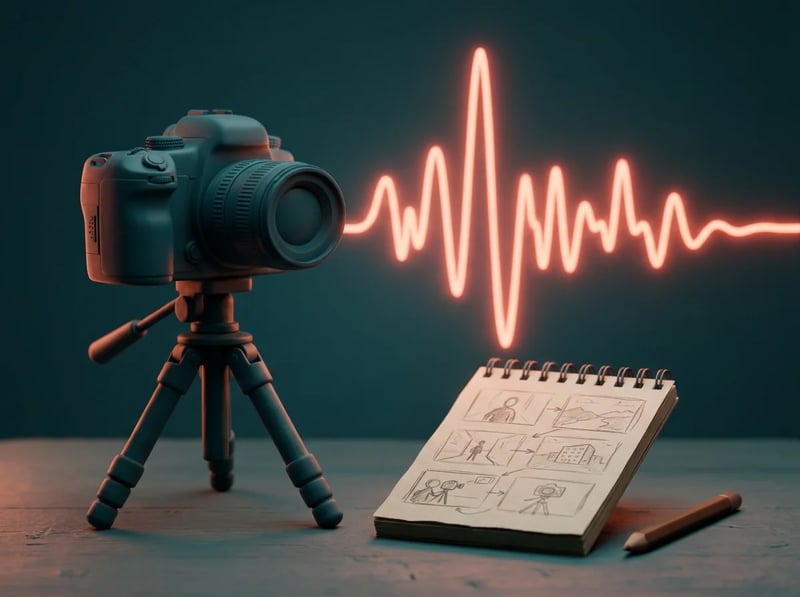
Brief the track from your scene
A generic "chill music" request rarely fits a specific cut. Describe what the viewer sees, the mood, the tempo, and the instruments you want, and TinyMusic generates a new track from that brief. You hear a draft built for the scene in the browser, instead of scrolling a catalog for something close.
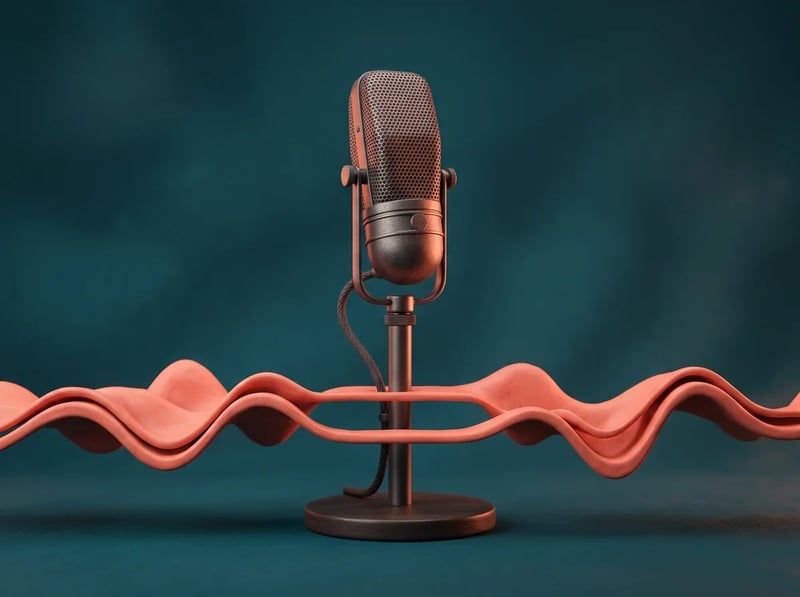
An instrumental that leaves room for your voice
Vocals in the music fight narration for the same frequencies. Ask for no vocals and the generator makes an instrumental, so a tutorial or a voice-over reads clearly. If you already have a song with a singer, split it into an instrumental and a vocal track and keep only the bed.

Preview and regenerate before you spend
Picking a track blind wastes an edit. Previewing is free: play each generated version in the browser against your video, and regenerate when the opening or the energy is wrong. You only pay once you decide to download a take you have already heard and want to keep.

Hand your editor an MP3 or a WAV
A track that cannot reach your timeline is not finished. Download the generated track as an MP3, or export it as a WAV when your editor prefers lossless audio. The same file is the one you previewed, so the take you approved is the take that ends up under your final cut.
Briefs
Briefs Written for Real YouTube Formats
Copy a brief, swap in your topic, and generate. These are starting prompts, not finished customer tracks.
“Warm acoustic bed for a travel vlog, gentle guitar and light percussion, hopeful, builds slowly, no vocals”
Use for Travel and lifestyle vlogs
“Quiet minimal piano with soft pads for a tech explainer, steady, unobtrusive, sits under a voice-over, no vocals”
Use for Narrated tutorials
“High-energy electronic intro, punchy drums, bright synth lead, a strong hook in the first seconds, no vocals”
Use for Channel intros and Shorts
“Dark ambient drone with slow pulses for a mystery documentary video, tense but restrained, no vocals”
Use for Story and documentary videos
Before you monetize
What to Know Before You Monetize
Some tools promise zero copyright risk. These are the real terms, stated before you pay.
Monetizing starts with any purchase
Free accounts can preview and use tracks for personal, non-commercial purposes. Any credit pack or plan unlocks commercial use of every track on your account, including ones you made earlier, and the license is the same on every plan.
No promise of zero Content ID claims
Content ID matches audio that sounds similar, and TinyMusic does not indemnify you if a claim appears. Each request generates new audio, which is what you can point to in a dispute. Avoid prompts that imitate a specific artist or recording.
Check YouTube's AI label rule yourself
YouTube asks creators to disclose realistic altered or synthetic content, and its help page names AI-generated music when the music is the main focus of the video. Rules change, so read the current page before you upload.
Not exclusive, not a copyright of yours
The license is worldwide, non-exclusive, and perpetual. Similar prompts can produce similar tracks for other people, and purely AI-generated audio may not be copyrightable as your own work where you publish.
Who uses it
Channels This Fits
Each scenario is a video format that needs its own kind of bed. All of them follow the same rule: commercial use after a purchase.
Vlog and travel creators
Score each scene with an instrumental that matches its mood, then generate a different one for the next location instead of reusing a catalog track.
Tutorial and explainer channels
Ask for a quiet instrumental with no vocals so narration stays clear, and preview it under your voice-over before you download.
Shorts and short-form creators
Describe the energy of the first seconds, generate a few takes, and keep the one whose opening lands with your first shot.
Faceless and narrated channels
Channels built on narration over footage need a bed per upload. Generate a new one for each video so no two uploads sound the same.
Compared with other options
Why Generate Instead of Browse
The comparison is about rights and workflow you can check, not a ranking of sound quality.
A new track per brief
Fixed catalogs give many channels the same finished tracks. TinyMusic generates new audio from your description, so the music is built for your video. The trade-off: it does not issue a per-track license certificate.
Instrumental and split in one place
Many generators stop at one finished mix. Here you can ask for no vocals up front, or split a generated song into vocal and instrumental tracks, so the bed fits under narration.
The rules, before you pay
No attribution is required, the same commercial license applies on every paid plan, and larger plans add credits rather than rights. The page says plainly that no tool can promise zero claims.
Questions
Questions Before You Upload
Answers follow the current terms: monetization, Content ID, AI labels, and credits.
Related tools
Make the Track, Then Publish It
Read the full commercial rules, generate beyond background music, or split a song for narration.
Royalty-Free AI Music
The full rules on commercial use, attribution, copyright limits, and the free plan.
Open toolAI Music Generator
Turn a text description into a complete track, with vocals or as an instrumental.
Open toolAI Vocal Remover
Split a song into an instrumental and a vocal track you can preview and download.
Open toolStart a track
Make Music for Your Next Upload
Describe the video and preview the take for free. Download it for personal use at 1 credit, or buy any credit pack or plan for unlimited downloads and commercial use.